QML
← 전체 컴포넌트

Dropdown

버튼을 눌러 메뉴나 사용자 정의 컨트롤, 간단한 폼을 담은 패널을 펼칩니다.

import Syidax.Core.Dropdown

지원 QML 타입

타입정의 / 역할
트리거와 그 위치에 맞춰 열리는 메뉴 팝업을 묶습니다.

예제로 보기

미리보기는 Qt 실행 화면의 이미지입니다. 아래 버튼으로 결과를 전환하세요.

01 기본 구성

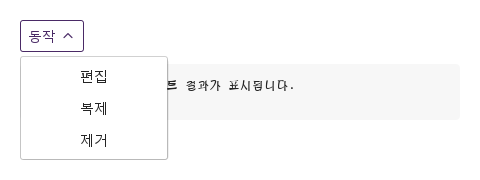
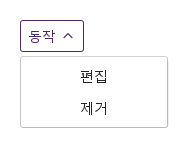
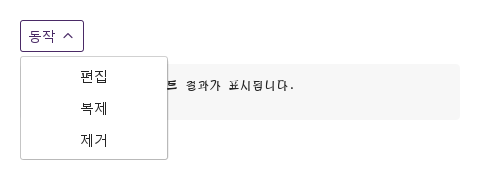
SyDropdown은 제목과 셰브론이 있는 상자로, 안에 선언한 것을 상자 아래(또는 위)의 떠 있는 면에 엽니다 — SyMenu, 버튼 열, 폼, 무엇이든.

Qt 실행 화면 · 이미지
기본 구성 · 열린 화면
QML 코드
import QtQuick
import Syidax.Core

Item {
    component EventLog: Rectangle {
        id: logBox
        property var lines: []
        implicitWidth: 440
        implicitHeight: Math.max(56, logText.implicitHeight + 24)
        radius: 4; color: Theme.semantic.backgroundBold
        function log(value) { lines = lines.slice(-3).concat([String(value)]) }
        Text {
            id: logText; x: 12; y: 12; width: parent.width - 24
            text: logBox.lines.length ? logBox.lines.join("\n") : "컨트롤을 조작하면 이벤트 결과가 표시됩니다."
            wrapMode: Text.Wrap; color: Theme.semantic.textDefault
            font.family: Theme.monoFontFamily; font.pixelSize: 12
        }
    }

    implicitWidth: Math.max(360, childrenRect.width)
    implicitHeight: childrenRect.height

    property QtObject settings: QtObject {
        id: storyArgs
        property string title: "동작"
        property string size: "medium"
        property bool borderless: false
        property bool disabled: false
        property string position: "bottomLeft"
        property string trigger: "click"
        property string tooltip: ""
    }


    Column {
        spacing: 12
        SyDropdown {
            id: actions
            title: storyArgs.title
            size: storyArgs.size
            borderless: storyArgs.borderless
            disabled: storyArgs.disabled
            position: storyArgs.position
            trigger: storyArgs.trigger
            tooltip: storyArgs.tooltip
            onSelected: (detail) => output.log(detail)
            Column {
                SyButton { id: exampleControl1;  text: "편집"; variant: "borderless"; width: 140; onClicked: actions.select("edit") }
                SyButton { id: exampleControl2;  text: "복제"; variant: "borderless"; width: 140; onClicked: actions.select("duplicate") }
                SyButton { id: exampleControl3;  text: "제거"; variant: "borderless"; width: 140; onClicked: actions.select("remove") }
            }
        }
        EventLog { id: output }
    }

}

02 size · borderless

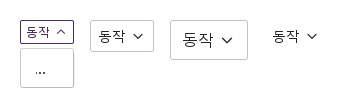
size가 상자를 정합니다: "small"은 24 px 높이에 12 px 글자와 더 작은 모서리, "medium"(기본)은 32 px에 14 px 글자, "large"는 40 px에 16 px 글자.

Qt 실행 화면 · 이미지
size · borderless · 열린 화면
QML 코드
import QtQuick
import Syidax.Core

Item {
    implicitWidth: Math.max(360, childrenRect.width)
    implicitHeight: childrenRect.height
    // Focused Gallery routes: keep only the selected API and its prerequisites.
    id: featureStory

    Row {
        spacing: 16
        SyDropdown { id: featureTarget0; visible: true; title: "동작"; size: "small"; SyButton { text: "…"; variant: "borderless" } }
        SyDropdown { title: "동작"; SyButton { text: "…"; variant: "borderless" } }
        SyDropdown { id: featureTarget1; visible: true; title: "동작"; size: "large"; SyButton { text: "…"; variant: "borderless" } }
        SyDropdown { id: featureTarget2; visible: true; title: "동작"; borderless: true; SyButton { text: "…"; variant: "borderless" } }
    }
}

03 position · trigger

position은 면을 상자 기준으로 놓습니다: "bottomLeft"(기본)와 "bottomRight"는 아래에, 상자의 왼쪽 또는 오른쪽 가장자리에 맞춰; "topLeft"와 "topRight"는 위에.

Qt 실행 화면 · 이미지
position · trigger · 열린 화면
QML 코드
import QtQuick
import Syidax.Core

Item {
    implicitWidth: Math.max(360, childrenRect.width)
    implicitHeight: childrenRect.height
    // Focused Gallery routes: keep only the selected API and its prerequisites.
    id: featureStory

    property QtObject settings: QtObject {
        id: storyArgs
        property string position: "bottomLeft"
        property string trigger: "click"
    }


    Item {
        width: 360
        height: 160
        SyDropdown { id: featureTarget0;
            anchors.centerIn: parent
            title: "동작"; position: storyArgs.position; trigger: storyArgs.trigger
            Column {
                SyButton { text: "편집"; variant: "borderless"; width: 140 }
                SyButton { text: "제거"; variant: "borderless"; width: 140 }
            }
        }
    }
}

04 selected

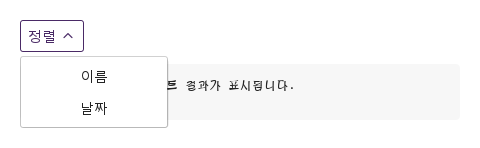
SyDropdown의 시그널은 selected(detail) 하나입니다.

Qt 실행 화면 · 이미지
selected · 열린 화면
QML 코드
import QtQuick
import Syidax.Core

Item {
    component EventLog: Rectangle {
        id: logBox
        property var lines: []
        implicitWidth: 440
        implicitHeight: Math.max(56, logText.implicitHeight + 24)
        radius: 4; color: Theme.semantic.backgroundBold
        function log(value) { lines = lines.slice(-3).concat([String(value)]) }
        Text {
            id: logText; x: 12; y: 12; width: parent.width - 24
            text: logBox.lines.length ? logBox.lines.join("\n") : "컨트롤을 조작하면 이벤트 결과가 표시됩니다."
            wrapMode: Text.Wrap; color: Theme.semantic.textDefault
            font.family: Theme.monoFontFamily; font.pixelSize: 12
        }
    }

    implicitWidth: Math.max(360, childrenRect.width)
    implicitHeight: childrenRect.height


    Column {
        spacing: 12
        SyDropdown {
            id: sort
            title: "정렬"
            onSelected: (detail) => output.log(("selected: %1").arg(detail))
            Column {
                SyButton { id: exampleControl1;  text: "이름"; variant: "borderless"; width: 140; onClicked: sort.select("name") }
                SyButton { id: exampleControl2;  text: "날짜"; variant: "borderless"; width: 140; onClicked: sort.select("date") }
            }
        }
        EventLog { id: output }
    }
}

05 open · close · select

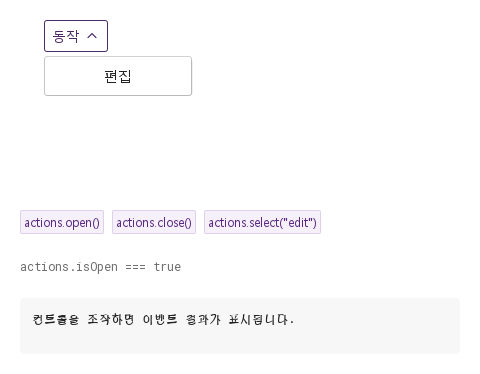
open()은 trigger와 무관하게 면을 보입니다.

Qt 실행 화면 · 이미지
open · close · select · 열린 화면
QML 코드
import QtQuick
import Syidax.Core

Item {
    component EventLog: Rectangle {
        id: logBox
        property var lines: []
        implicitWidth: 440
        implicitHeight: Math.max(56, logText.implicitHeight + 24)
        radius: 4; color: Theme.semantic.backgroundBold
        function log(value) { lines = lines.slice(-3).concat([String(value)]) }
        Text {
            id: logText; x: 12; y: 12; width: parent.width - 24
            text: logBox.lines.length ? logBox.lines.join("\n") : "컨트롤을 조작하면 이벤트 결과가 표시됩니다."
            wrapMode: Text.Wrap; color: Theme.semantic.textDefault
            font.family: Theme.monoFontFamily; font.pixelSize: 12
        }
    }

    implicitWidth: Math.max(360, childrenRect.width)
    implicitHeight: childrenRect.height
    // Focused Gallery routes: keep only the selected API and its prerequisites.
    id: featureStory

    Column {
        spacing: 24
        Item {
            width: 560; height: 190
            SyDropdown {
                x: 24; y: 24
 id: actions; title: "동작"; onSelected: (detail) => output.log(detail); SyButton { visible: true; text: "편집"; variant: "borderless"; width: 140; onClicked: actions.select("edit") } }
        }
        Row {
            objectName: "exampleCommands"

            spacing: 8
            SyButton { id: exampleControl1;  visible: true; text: "actions.open()"; variant: "secondary"; size: "small"; onClicked: actions.open() }
            SyButton { id: exampleControl2;  visible: true; text: "actions.close()"; variant: "secondary"; size: "small"; onClicked: actions.close() }
            SyButton { id: exampleControl3;  visible: true; text: "actions.select(\"edit\")"; variant: "secondary"; size: "small"; onClicked: actions.select("edit") }
        }
        Text {
            text: "actions.isOpen === " + actions.isOpen
            font.family: Theme.monoFontFamily
            font.pixelSize: 12
            color: Theme.semantic.textSubtle
        }
        EventLog { id: output }
    }
}

06 작은 작업 메뉴

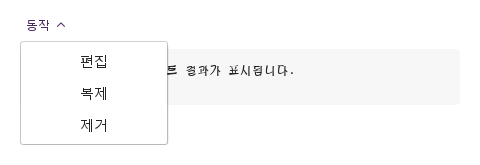
size · borderless 설정을 적용한 작은 작업 메뉴 예제입니다.

Qt 실행 화면 · 이미지
작은 작업 메뉴 · 열린 화면
QML 코드
import QtQuick
import Syidax.Core

Item {
    component EventLog: Rectangle {
        id: logBox
        property var lines: []
        implicitWidth: 440
        implicitHeight: Math.max(56, logText.implicitHeight + 24)
        radius: 4; color: Theme.semantic.backgroundBold
        function log(value) { lines = lines.slice(-3).concat([String(value)]) }
        Text {
            id: logText; x: 12; y: 12; width: parent.width - 24
            text: logBox.lines.length ? logBox.lines.join("\n") : "컨트롤을 조작하면 이벤트 결과가 표시됩니다."
            wrapMode: Text.Wrap; color: Theme.semantic.textDefault
            font.family: Theme.monoFontFamily; font.pixelSize: 12
        }
    }

    implicitWidth: Math.max(360, childrenRect.width)
    implicitHeight: childrenRect.height

    property QtObject settings: QtObject {
        id: storyArgs
        property string title: "동작"
        property string size: "small"
        property bool borderless: true
        property bool disabled: false
        property string position: "bottomLeft"
        property string trigger: "click"
        property string tooltip: ""
    }


    Column {
        spacing: 12
        SyDropdown {
            id: actions
            title: storyArgs.title
            size: storyArgs.size
            borderless: storyArgs.borderless
            disabled: storyArgs.disabled
            position: storyArgs.position
            trigger: storyArgs.trigger
            tooltip: storyArgs.tooltip
            onSelected: (detail) => output.log(detail)
            Column {
                SyButton { text: "편집"; variant: "borderless"; width: 140; onClicked: actions.select("edit") }
                SyButton { text: "복제"; variant: "borderless"; width: 140; onClicked: actions.select("duplicate") }
                SyButton { text: "제거"; variant: "borderless"; width: 140; onClicked: actions.select("remove") }
            }
        }
        EventLog { id: output }
    }

}

07 마우스로 메뉴 열기

trigger 설정을 적용한 마우스로 메뉴 열기 예제입니다.

Qt 실행 화면 · 이미지
마우스로 메뉴 열기 · 열린 화면
QML 코드
import QtQuick
import Syidax.Core

Item {
    component EventLog: Rectangle {
        id: logBox
        property var lines: []
        implicitWidth: 440
        implicitHeight: Math.max(56, logText.implicitHeight + 24)
        radius: 4; color: Theme.semantic.backgroundBold
        function log(value) { lines = lines.slice(-3).concat([String(value)]) }
        Text {
            id: logText; x: 12; y: 12; width: parent.width - 24
            text: logBox.lines.length ? logBox.lines.join("\n") : "컨트롤을 조작하면 이벤트 결과가 표시됩니다."
            wrapMode: Text.Wrap; color: Theme.semantic.textDefault
            font.family: Theme.monoFontFamily; font.pixelSize: 12
        }
    }

    implicitWidth: Math.max(360, childrenRect.width)
    implicitHeight: childrenRect.height

    property QtObject settings: QtObject {
        id: storyArgs
        property string title: "동작"
        property string size: "medium"
        property bool borderless: false
        property bool disabled: false
        property string position: "bottomLeft"
        property string trigger: "hover"
        property string tooltip: ""
    }


    Column {
        spacing: 12
        SyDropdown {
            id: actions
            title: storyArgs.title
            size: storyArgs.size
            borderless: storyArgs.borderless
            disabled: storyArgs.disabled
            position: storyArgs.position
            trigger: storyArgs.trigger
            tooltip: storyArgs.tooltip
            onSelected: (detail) => output.log(detail)
            Column {
                SyButton { text: "편집"; variant: "borderless"; width: 140; onClicked: actions.select("edit") }
                SyButton { text: "복제"; variant: "borderless"; width: 140; onClicked: actions.select("duplicate") }
                SyButton { text: "제거"; variant: "borderless"; width: 140; onClicked: actions.select("remove") }
            }
        }
        EventLog { id: output }
    }

}

08 사용할 수 없는 메뉴

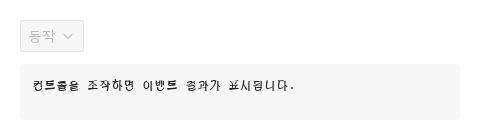
disabled 설정을 적용한 사용할 수 없는 메뉴 예제입니다.

Qt 실행 화면 · 이미지
사용할 수 없는 메뉴 · 실행 결과
기본 실행 화면
QML 코드
import QtQuick
import Syidax.Core

Item {
    component EventLog: Rectangle {
        id: logBox
        property var lines: []
        implicitWidth: 440
        implicitHeight: Math.max(56, logText.implicitHeight + 24)
        radius: 4; color: Theme.semantic.backgroundBold
        function log(value) { lines = lines.slice(-3).concat([String(value)]) }
        Text {
            id: logText; x: 12; y: 12; width: parent.width - 24
            text: logBox.lines.length ? logBox.lines.join("\n") : "컨트롤을 조작하면 이벤트 결과가 표시됩니다."
            wrapMode: Text.Wrap; color: Theme.semantic.textDefault
            font.family: Theme.monoFontFamily; font.pixelSize: 12
        }
    }

    implicitWidth: Math.max(360, childrenRect.width)
    implicitHeight: childrenRect.height

    property QtObject settings: QtObject {
        id: storyArgs
        property string title: "동작"
        property string size: "medium"
        property bool borderless: false
        property bool disabled: true
        property string position: "bottomLeft"
        property string trigger: "click"
        property string tooltip: ""
    }


    Column {
        spacing: 12
        SyDropdown {
            id: actions
            title: storyArgs.title
            size: storyArgs.size
            borderless: storyArgs.borderless
            disabled: storyArgs.disabled
            position: storyArgs.position
            trigger: storyArgs.trigger
            tooltip: storyArgs.tooltip
            onSelected: (detail) => output.log(detail)
            Column {
                SyButton { text: "편집"; variant: "borderless"; width: 140; onClicked: actions.select("edit") }
                SyButton { text: "복제"; variant: "borderless"; width: 140; onClicked: actions.select("duplicate") }
                SyButton { text: "제거"; variant: "borderless"; width: 140; onClicked: actions.select("remove") }
            }
        }
        EventLog { id: output }
    }

}

API 29

항목을 가리키거나 선택하면 QML 예제와 복사 버튼이 나타납니다.

속성

속성타입기본값설명
list (기본 속성)—면이 보이는 것(면 안으로 부모 변경)
string""상자 글자; 비어 있으면 숨김
string"medium"small 24 px · medium 32 px · large 40 px
boolfalse상자에 포커스가 올 때까지 배경과 테두리 없음
boolfalse회색; 절대 열리지 않음 — 클릭, 호버, 키, open() 무시
string""상자를 500 ms 호버하면 보이는 글
string"bottomLeft"bottomLeft · bottomRight · topLeft · topRight; 공간이 없으면 뒤집힘
string"click"click(토글; Escape나 바깥 누름으로 닫힘) · hover(포인터가 떠난 뒤 100 ms 후 닫힘)
bool (읽기 전용)—면이 보이는 중
bool (읽기 전용)—상자에 키보드 포커스
bool (읽기 전용)—포인터가 상자 위에 있음

메서드

메서드설명
selected(detail) 발생 후 면 닫기; 닫혀 있어도 동작
트리거와 무관하게 면 보이기; disabled면 거부
면 숨기기

시그널

시그널인자시점
detail(아무 값)select(detail)가 불림 — 안의 SyMenu 선택({ value, label }) 또는 직접 만든 아이템; 직후 면이 닫힘. 열리고 닫힐 때는 아님

동작

항목동작 / 조건
상자 글자; 비어 있으면 숨김
small 24 px · medium 32 px · large 40 px
회색; 절대 열리지 않음 — 클릭, 호버, 키, open() 무시
상자에 포커스가 올 때까지 배경과 테두리 없음
상자를 500 ms 호버하면 보이는 글
click(토글; Escape나 바깥 누름으로 닫힘) · hover(포인터가 떠난 뒤 100 ms 후 닫힘)
트리거와 무관하게 면 보이기; disabled면 거부
bottomLeft · bottomRight · topLeft · topRight; 공간이 없으면 뒤집힘
내용은 면 안으로 다시 부모가 바뀌므로 안에서의 parent는 드롭다운이 아니라 면의 내용 아이템입니다 — 아이템에 명시적 크기를 주십시오.
selected(detail) 발생 후 면 닫기; 닫혀 있어도 동작
select(detail)가 불림 — 안의 SyMenu 선택({ value, label }) 또는 직접 만든 아이템; 직후 면이 닫힘. 열리고 닫힐 때는 아님
면이 보이는 중
상자는 disabled가 아니면 Tab 순서에 들어갑니다. Space / Enter 토글, Down 열기, Escape 닫기. 내용 안의 키는 내용의 몫입니다.

키보드

항목동작 / 조건
SyMenu가 흔한 내용이고, 상자에 고른 값을 표시해야 하면 SySelect, 아무 아이템에서 상호작용 없는 면을 띄우려면 SyPopover.