QML
← 전체 컴포넌트

Select

펼쳐지는 옵션 목록에서 하나 또는 여러 값을 선택하는 필드입니다.

import Syidax.Core.Select

지원 QML 타입

타입정의 / 역할
SySelect 안에 선언하는 데이터 항목이며 값·라벨·사용 가능 상태를 정의합니다.
SyOption 목록을 팝업으로 보여주는 단일·다중 선택 폼 필드입니다.

예제로 보기

미리보기는 Qt 실행 화면의 이미지입니다. 아래 버튼으로 결과를 전환하세요.

01 기본 구성

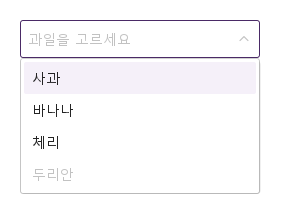
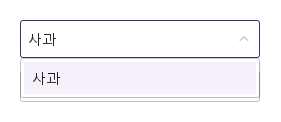
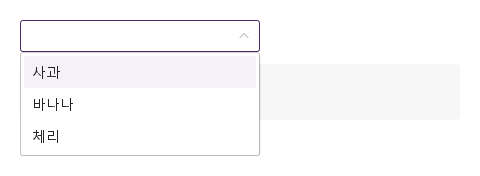
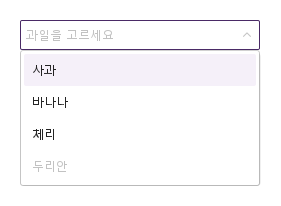
SySelect는 상자 아래로 선택 목록을 여는 폼 필드입니다.

Qt 실행 화면 · 이미지
기본 구성 · 열린 화면
QML 코드
import QtQuick
import Syidax.Core

Item {
    implicitWidth: Math.max(360, childrenRect.width)
    implicitHeight: childrenRect.height

    property QtObject settings: QtObject {
        id: storyArgs
        property string mode: "default"
        property string placeholder: "과일을 고르세요"
        property string size: "medium"
        property bool clearable: false
        property bool disabled: false
        property bool readonly: false
        property bool required: false
        property string status: "default"
        property bool loading: false
        property bool empty: false
        property bool hide: false
        property int maxTagCount: 0
    }


    SySelect { id: exampleControl1; 
        mode: storyArgs.mode
        placeholder: storyArgs.placeholder
        size: storyArgs.size
        clearable: storyArgs.clearable
        disabled: storyArgs.disabled
        readonly: storyArgs.readonly
        required: storyArgs.required
        status: storyArgs.status
        loading: storyArgs.loading
        empty: storyArgs.empty
        hide: storyArgs.hide
        maxTagCount: storyArgs.maxTagCount
        SyOption { value: "apple"; label: "사과" }
        SyOption { value: "banana"; label: "바나나" }
        SyOption { value: "cherry"; label: "체리" }
        SyOption { value: "durian"; label: "두리안"; disabled: true }
    }

}

02 mode

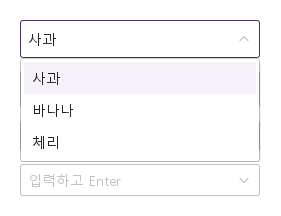
mode는 고르는 방식을 정합니다.

Qt 실행 화면 · 이미지
mode · 열린 화면
QML 코드
import QtQuick
import Syidax.Core

Item {
    implicitWidth: Math.max(360, childrenRect.width)
    implicitHeight: childrenRect.height
    readonly property var fruit: ["apple", "banana", "cherry"]


    Column {
        spacing: 12
        SySelect { id: exampleControl1; 
            defaultValue: "apple"
            SyOption { value: "apple"; label: "사과" }
            SyOption { value: "banana"; label: "바나나" }
            SyOption { value: "cherry"; label: "체리" }
        }
        SySelect {
            mode: "searchable"; placeholder: "입력해서 거르기"
            SyOption { value: "apple"; label: "사과" }
            SyOption { value: "banana"; label: "바나나" }
            SyOption { value: "cherry"; label: "체리" }
        }
        SySelect {
            mode: "multiple"; defaultValue: ["apple", "cherry"]
            SyOption { value: "apple"; label: "사과" }
            SyOption { value: "banana"; label: "바나나" }
            SyOption { value: "cherry"; label: "체리" }
        }
        SySelect {
            mode: "tag"; placeholder: "입력하고 Enter"
            SyOption { value: "apple"; label: "사과" }
            SyOption { value: "banana"; label: "바나나" }
            SyOption { value: "cherry"; label: "체리" }
        }
    }
}

03 size

size는 상자 높이를 정합니다 — small 24 px · medium 32 px(기본값) · large 40 px — 글자·여백·아이콘 크기도 함께 바뀌고, 다중 모드의 태그도 같은 크기를 씁니다.

Qt 실행 화면 · 이미지
size · 열린 화면
QML 코드
import QtQuick
import Syidax.Core

Item {
    implicitWidth: Math.max(360, childrenRect.width)
    implicitHeight: childrenRect.height
    property QtObject settings: QtObject {
        id: storyArgs
        property string size: "medium"
    }


    Column {
        spacing: 12
        SySelect { id: exampleControl1;  defaultValue: "apple"; size: storyArgs.size; SyOption { value: "apple"; label: "사과" } }
        SySelect {
            mode: "multiple"; defaultValue: ["apple", "banana"]; size: storyArgs.size
            SyOption { value: "apple"; label: "사과" }
            SyOption { value: "banana"; label: "바나나" }
        }
    }
}

04 clearable

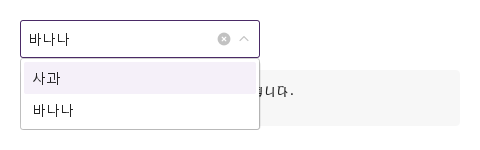
clearable: true는 무언가 선택되자마자 상자 오른쪽에 ×를 보입니다(disabled나 readonly일 때는 절대 보이지 않음).

Qt 실행 화면 · 이미지
clearable · 열린 화면
QML 코드
import QtQuick
import Syidax.Core

Item {
    component EventLog: Rectangle {
        id: logBox
        property var lines: []
        implicitWidth: 440
        implicitHeight: Math.max(56, logText.implicitHeight + 24)
        radius: 4; color: Theme.semantic.backgroundBold
        function log(value) { lines = lines.slice(-3).concat([String(value)]) }
        Text {
            id: logText; x: 12; y: 12; width: parent.width - 24
            text: logBox.lines.length ? logBox.lines.join("\n") : "컨트롤을 조작하면 이벤트 결과가 표시됩니다."
            wrapMode: Text.Wrap; color: Theme.semantic.textDefault
            font.family: Theme.monoFontFamily; font.pixelSize: 12
        }
    }

    implicitWidth: Math.max(360, childrenRect.width)
    implicitHeight: childrenRect.height

    Column {
        spacing: 12
        SySelect { id: exampleControl1; 
            clearable: true; defaultValue: "banana"
            onCleared: output.log("cleared")
            SyOption { value: "apple"; label: "사과" }
            SyOption { value: "banana"; label: "바나나" }
        }
        EventLog { id: output }
    }
}

05 disabled · readonly · status · required

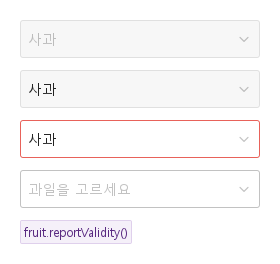
disabled는 비활성 톤으로 그립니다.

Qt 실행 화면 · 이미지
disabled · readonly · status · required · 기본
기본 실행 화면
QML 코드
import QtQuick
import Syidax.Core

Item {
    implicitWidth: Math.max(360, childrenRect.width)
    implicitHeight: childrenRect.height
    // Focused Gallery routes: keep only the selected API and its prerequisites.
    id: featureStory

    Column {
        spacing: 12
        SySelect { id: featureTarget0; visible: true; defaultValue: "apple"; disabled: true; SyOption { value: "apple"; label: "사과" } }
        SySelect { id: featureTarget1; visible: true; defaultValue: "apple"; readonly: true; SyOption { value: "apple"; label: "사과" } }
        SySelect { id: featureTarget2; visible: true; defaultValue: "apple"; status: "error"; SyOption { value: "apple"; label: "사과" } }
        SySelect { visible: true; id: fruit; required: true; placeholder: "과일을 고르세요"; SyOption { value: "apple"; label: "사과" } }
        SyButton { visible: true; text: "fruit.reportValidity()"; variant: "secondary"; size: "small"; onClicked: fruit.reportValidity() }
    }
}

06 loading · empty

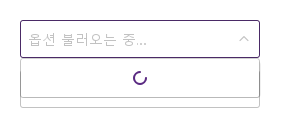
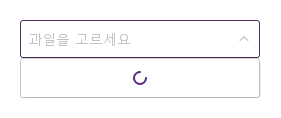
loading: true는 행 대신 스피너 행 하나를 보입니다 — 옵션은 그대로 있지만 고를 수 없고 키도 동작하지 않습니다.

Qt 실행 화면 · 이미지
loading · empty · 열린 화면
QML 코드
import QtQuick
import Syidax.Core

Item {
    implicitWidth: Math.max(360, childrenRect.width)
    implicitHeight: childrenRect.height
    // Focused Gallery routes: keep only the selected API and its prerequisites.
    id: featureStory

    Column {
        spacing: 12
        SySelect { id: featureTarget0; visible: true; loading: true; placeholder: "옵션 불러오는 중…"; SyOption { value: "apple"; label: "사과" } }
        SySelect { id: featureTarget1; visible: true; empty: true; placeholder: "옵션 없음" }
    }
}

07 maxTagCount · hide

maxTagCount는 다중 모드 상자가 보이는 태그 수를 제한합니다.

Qt 실행 화면 · 이미지
maxTagCount · hide · 열린 화면
QML 코드
import QtQuick
import Syidax.Core

Item {
    implicitWidth: Math.max(360, childrenRect.width)
    implicitHeight: childrenRect.height
    // Focused Gallery routes: keep only the selected API and its prerequisites.
    id: featureStory

    property QtObject settings: QtObject {
        id: storyArgs
        property int maxTagCount: 2
        property bool hide: true
    }


    SySelect { id: featureTarget0;
        mode: "multiple"; defaultValue: ["apple", "banana", "cherry"]
        maxTagCount: storyArgs.maxTagCount; hide: storyArgs.hide
        SyOption { value: "apple"; label: "사과" }
        SyOption { value: "banana"; label: "바나나" }
        SyOption { value: "cherry"; label: "체리" }
        SyOption { value: "durian"; label: "두리안" }
    }
}

08 opened · selected · removed · cleared · inputChanged

opened() — 목록이 열림(클릭, 키, 입력, 또는 openDropdown()).

Qt 실행 화면 · 이미지
opened · selected · removed · cleared · inputChanged · 열린 화면
QML 코드
import QtQuick
import Syidax.Core

Item {
    component EventLog: Rectangle {
        id: logBox
        property var lines: []
        implicitWidth: 440
        implicitHeight: Math.max(56, logText.implicitHeight + 24)
        radius: 4; color: Theme.semantic.backgroundBold
        function log(value) { lines = lines.slice(-3).concat([String(value)]) }
        Text {
            id: logText; x: 12; y: 12; width: parent.width - 24
            text: logBox.lines.length ? logBox.lines.join("\n") : "컨트롤을 조작하면 이벤트 결과가 표시됩니다."
            wrapMode: Text.Wrap; color: Theme.semantic.textDefault
            font.family: Theme.monoFontFamily; font.pixelSize: 12
        }
    }

    implicitWidth: Math.max(360, childrenRect.width)
    implicitHeight: childrenRect.height
    // Focused Gallery routes: keep only the selected API and its prerequisites.
    id: featureStory


    Column {
        spacing: 12
        SySelect { id: exampleControl1; 
            mode: "multiple"; clearable: true
            onOpened: { if (true) { output.log("opened") } }
            onSelected: (detail) => { if (true) { output.log(("selected: %1").arg(detail.selectedOptions.map((o) => o.label).join(", "))) } }
            onRemoved: (detail) => { if (true) { output.log(("removed: %1").arg(detail.item.label)) } }
            onCleared: { if (true) { output.log("cleared") } }
            onInputChanged: (text) => { if (true) { output.log(("input: %1").arg(text)) } }
            SyOption { value: "apple"; label: "사과" }
            SyOption { value: "banana"; label: "바나나" }
            SyOption { value: "cherry"; label: "체리" }
        }
        EventLog { id: output }
    }
}

09 setValue · clearValue · openDropdown · closeDropdown

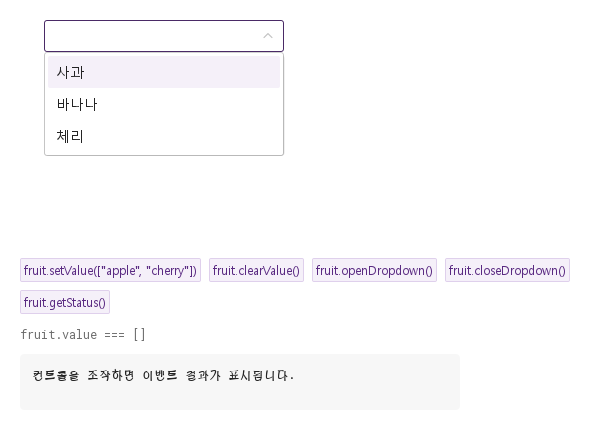
setValue(value | values)는 코드에서 고릅니다: 옵션 값 하나, 또는 다중 모드에서는 값 목록(단일 모드에 목록을 주면 알려진 첫 값만 적용).

Qt 실행 화면 · 이미지
setValue · clearValue · openDropdown · closeDropdown · 열린 화면
QML 코드
import QtQuick
import Syidax.Core

Item {
    component EventLog: Rectangle {
        id: logBox
        property var lines: []
        implicitWidth: 440
        implicitHeight: Math.max(56, logText.implicitHeight + 24)
        radius: 4; color: Theme.semantic.backgroundBold
        function log(value) { lines = lines.slice(-3).concat([String(value)]) }
        Text {
            id: logText; x: 12; y: 12; width: parent.width - 24
            text: logBox.lines.length ? logBox.lines.join("\n") : "컨트롤을 조작하면 이벤트 결과가 표시됩니다."
            wrapMode: Text.Wrap; color: Theme.semantic.textDefault
            font.family: Theme.monoFontFamily; font.pixelSize: 12
        }
    }

    implicitWidth: Math.max(360, childrenRect.width)
    implicitHeight: childrenRect.height
    // Focused Gallery routes: keep only the selected API and its prerequisites.
    id: featureStory

    Column {
        spacing: 12
        Item {
            width: 560; height: 250
            SySelect {
                x: 24; y: 24

            id: fruit
            mode: "multiple"
            SyOption { value: "apple"; label: "사과" }
            SyOption { value: "banana"; label: "바나나" }
            SyOption { value: "cherry"; label: "체리" }
        }
        }
        Flow {
            objectName: "exampleCommands"

            width: 560
            spacing: 8
            SyButton { id: exampleControl1;  visible: true; text: "fruit.setValue([\"apple\", \"cherry\"])"; variant: "secondary"; size: "small"; onClicked: fruit.setValue(["apple", "cherry"]) }
            SyButton { id: exampleControl2;  visible: true; text: "fruit.clearValue()"; variant: "secondary"; size: "small"; onClicked: fruit.clearValue() }
            SyButton { id: exampleControl3;  visible: true; text: "fruit.openDropdown()"; variant: "secondary"; size: "small"; onClicked: fruit.openDropdown() }
            SyButton { id: exampleControl4;  visible: true; text: "fruit.closeDropdown()"; variant: "secondary"; size: "small"; onClicked: fruit.closeDropdown() }
            SyButton { id: exampleControl5;  visible: true; text: "fruit.getStatus()"; variant: "secondary"; size: "small"; onClicked: output.log("getStatus() → " + JSON.stringify(fruit.getStatus())) }
        }
        Text {
            text: "fruit.value === " + JSON.stringify(fruit.value)
            font.family: Theme.monoFontFamily
            font.pixelSize: 12
            color: Theme.semantic.textSubtle
        }
        EventLog { id: output }
    }
}

10 옵션이 없는 상태

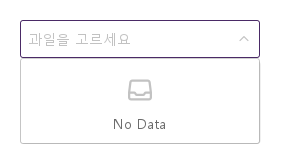
empty 설정을 적용한 옵션이 없는 상태 예제입니다.

Qt 실행 화면 · 이미지
옵션이 없는 상태 · 열린 화면
QML 코드
import QtQuick
import Syidax.Core

Item {
    implicitWidth: Math.max(360, childrenRect.width)
    implicitHeight: childrenRect.height

    property QtObject settings: QtObject {
        id: storyArgs
        property string mode: "default"
        property string placeholder: "과일을 고르세요"
        property string size: "medium"
        property bool clearable: false
        property bool disabled: false
        property bool readonly: false
        property bool required: false
        property string status: "default"
        property bool loading: false
        property bool empty: true
        property bool hide: false
        property int maxTagCount: 0
    }


    SySelect { id: exampleControl1; 
        mode: storyArgs.mode
        placeholder: storyArgs.placeholder
        size: storyArgs.size
        clearable: storyArgs.clearable
        disabled: storyArgs.disabled
        readonly: storyArgs.readonly
        required: storyArgs.required
        status: storyArgs.status
        loading: storyArgs.loading
        empty: storyArgs.empty
        hide: storyArgs.hide
        maxTagCount: storyArgs.maxTagCount
        SyOption { value: "apple"; label: "사과" }
        SyOption { value: "banana"; label: "바나나" }
        SyOption { value: "cherry"; label: "체리" }
        SyOption { value: "durian"; label: "두리안"; disabled: true }
    }

}

11 옵션 로딩

loading 설정을 적용한 옵션 로딩 예제입니다.

Qt 실행 화면 · 이미지
옵션 로딩 · 열린 화면
QML 코드
import QtQuick
import Syidax.Core

Item {
    implicitWidth: Math.max(360, childrenRect.width)
    implicitHeight: childrenRect.height

    property QtObject settings: QtObject {
        id: storyArgs
        property string mode: "default"
        property string placeholder: "과일을 고르세요"
        property string size: "medium"
        property bool clearable: false
        property bool disabled: false
        property bool readonly: false
        property bool required: false
        property string status: "default"
        property bool loading: true
        property bool empty: false
        property bool hide: false
        property int maxTagCount: 0
    }


    SySelect { id: exampleControl1; 
        mode: storyArgs.mode
        placeholder: storyArgs.placeholder
        size: storyArgs.size
        clearable: storyArgs.clearable
        disabled: storyArgs.disabled
        readonly: storyArgs.readonly
        required: storyArgs.required
        status: storyArgs.status
        loading: storyArgs.loading
        empty: storyArgs.empty
        hide: storyArgs.hide
        maxTagCount: storyArgs.maxTagCount
        SyOption { value: "apple"; label: "사과" }
        SyOption { value: "banana"; label: "바나나" }
        SyOption { value: "cherry"; label: "체리" }
        SyOption { value: "durian"; label: "두리안"; disabled: true }
    }

}

12 선택 태그 개수 제한

mode · maxTagCount 설정을 적용한 선택 태그 개수 제한 예제입니다.

Qt 실행 화면 · 이미지
선택 태그 개수 제한 · 열린 화면
QML 코드
import QtQuick
import Syidax.Core

Item {
    implicitWidth: Math.max(360, childrenRect.width)
    implicitHeight: childrenRect.height

    property QtObject settings: QtObject {
        id: storyArgs
        property string mode: "multiple"
        property string placeholder: "과일을 고르세요"
        property string size: "medium"
        property bool clearable: false
        property bool disabled: false
        property bool readonly: false
        property bool required: false
        property string status: "default"
        property bool loading: false
        property bool empty: false
        property bool hide: false
        property int maxTagCount: 2
    }


    SySelect { id: exampleControl1; 
        defaultValue: ["apple", "banana", "cherry"]
        mode: storyArgs.mode
        placeholder: storyArgs.placeholder
        size: storyArgs.size
        clearable: storyArgs.clearable
        disabled: storyArgs.disabled
        readonly: storyArgs.readonly
        required: storyArgs.required
        status: storyArgs.status
        loading: storyArgs.loading
        empty: storyArgs.empty
        hide: storyArgs.hide
        maxTagCount: storyArgs.maxTagCount
        SyOption { value: "apple"; label: "사과" }
        SyOption { value: "banana"; label: "바나나" }
        SyOption { value: "cherry"; label: "체리" }
        SyOption { value: "durian"; label: "두리안"; disabled: true }
    }

}

13 읽기 전용 선택

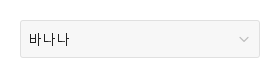
readonly 설정을 적용한 읽기 전용 선택 예제입니다.

Qt 실행 화면 · 이미지
읽기 전용 선택 · 실행 결과
기본 실행 화면
QML 코드
import QtQuick
import Syidax.Core

Item {
    implicitWidth: Math.max(360, childrenRect.width)
    implicitHeight: childrenRect.height

    property QtObject settings: QtObject {
        id: storyArgs
        property string mode: "default"
        property string placeholder: "과일을 고르세요"
        property string size: "medium"
        property bool clearable: false
        property bool disabled: false
        property bool readonly: true
        property bool required: false
        property string status: "default"
        property bool loading: false
        property bool empty: false
        property bool hide: false
        property int maxTagCount: 0
    }


    SySelect {
        defaultValue: "banana"
        mode: storyArgs.mode
        placeholder: storyArgs.placeholder
        size: storyArgs.size
        clearable: storyArgs.clearable
        disabled: storyArgs.disabled
        readonly: storyArgs.readonly
        required: storyArgs.required
        status: storyArgs.status
        loading: storyArgs.loading
        empty: storyArgs.empty
        hide: storyArgs.hide
        maxTagCount: storyArgs.maxTagCount
        SyOption { value: "apple"; label: "사과" }
        SyOption { value: "banana"; label: "바나나" }
        SyOption { value: "cherry"; label: "체리" }
        SyOption { value: "durian"; label: "두리안"; disabled: true }
    }

}

14 작은 검색 선택창

mode · size 설정을 적용한 작은 검색 선택창 예제입니다.

Qt 실행 화면 · 이미지
작은 검색 선택창 · 열린 화면
QML 코드
import QtQuick
import Syidax.Core

Item {
    implicitWidth: Math.max(360, childrenRect.width)
    implicitHeight: childrenRect.height

    property QtObject settings: QtObject {
        id: storyArgs
        property string mode: "searchable"
        property string placeholder: "과일을 고르세요"
        property string size: "small"
        property bool clearable: false
        property bool disabled: false
        property bool readonly: false
        property bool required: false
        property string status: "default"
        property bool loading: false
        property bool empty: false
        property bool hide: false
        property int maxTagCount: 0
    }


    SySelect { id: exampleControl1; 
        mode: storyArgs.mode
        placeholder: storyArgs.placeholder
        size: storyArgs.size
        clearable: storyArgs.clearable
        disabled: storyArgs.disabled
        readonly: storyArgs.readonly
        required: storyArgs.required
        status: storyArgs.status
        loading: storyArgs.loading
        empty: storyArgs.empty
        hide: storyArgs.hide
        maxTagCount: storyArgs.maxTagCount
        SyOption { value: "apple"; label: "사과" }
        SyOption { value: "banana"; label: "바나나" }
        SyOption { value: "cherry"; label: "체리" }
        SyOption { value: "durian"; label: "두리안"; disabled: true }
    }

}

15 필수 입력과 초기화

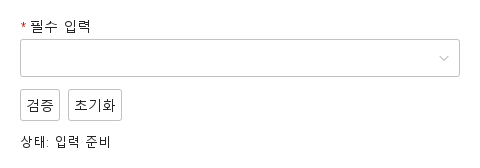
검증 전·오류 표시·초기화 결과를 비교합니다.

Qt 실행 화면 · 이미지
필수 입력과 초기화 · 입력 전
QML 코드
import QtQuick
import Syidax.Core

Column {
    width: 440; spacing: 12
    SySelect {
        id: field; width: parent.width; name: "selection"; required: true
        label: "필수 입력"; SyOption { label: "디자인"; value: "design" } SyOption { label: "개발"; value: "dev" }
        
        error: "계속하려면 이 항목을 입력하세요."
    }
    Row {
        spacing: 8
        SyButton { id: check; text: "검증"; onClicked: field.reportValidity() }
        SyButton { id: reset; text: "초기화"; onClicked: field.reset() }
    }
    Text { text: "상태: " + (field.invalid ? "오류" : "입력 준비"); color: Theme.semantic.textDefault }
}

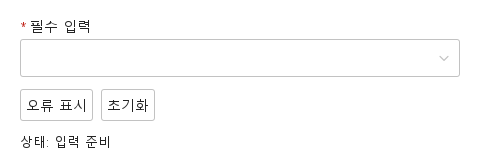
16 사용자 지정 오류

업무 규칙에 맞는 오류를 표시하고 초기화합니다.

Qt 실행 화면 · 이미지
사용자 지정 오류 · 입력 전
QML 코드
import QtQuick
import Syidax.Core

Column {
    width: 440; spacing: 12
    SySelect {
        id: field; width: parent.width; name: "selection"; required: true
        label: "필수 입력"; SyOption { label: "디자인"; value: "design" } SyOption { label: "개발"; value: "dev" }
        
        error: "현재 사용할 수 없는 선택입니다. 다른 값을 선택하세요."
    }
    Row {
        spacing: 8
        SyButton { id: check; text: "오류 표시"; onClicked: field.setCustomError() }
        SyButton { id: reset; text: "초기화"; onClicked: field.reset() }
    }
    Text { text: "상태: " + (field.invalid ? "오류" : "입력 준비"); color: Theme.semantic.textDefault }
}

API 101

항목을 가리키거나 선택하면 QML 예제와 복사 버튼이 나타납니다.

속성 · SySelect

속성타입기본값설명
string"default"default · searchable · multiple · tag — 동작 참조.
string 또는 list(읽기 전용 바인딩)—선택된 옵션 값(없으면 "") 또는 다중 모드에서는 값 목록. 대입하지 말고 defaultValue / setValue()를 쓰십시오.
var""생성 시와 바뀔 때마다 적용할 선택: 값 하나, 또는 값 목록(다중 모드). reset()이 여기로 돌아갑니다.
list[]라벨이 붙은 선택: [{ value, label, isCustomTag }].
string""아무것도 선택되지 않은 동안 상자에 보입니다.
string"medium"상자 높이 small 24 · medium 32 · large 40 px. 태그가 따릅니다.
string"default"default · error — error는 유효성을 바꾸지 않고 오류 톤을 강제합니다.
boolfalse선택이 있고 disabled / readonly가 아닌 동안 선택을 비우는 ×(cleared).
boolfalse비활성 톤. 열리거나 입력되지 않음. 항상 유효.
boolfalse선택은 읽을 수 있고, 열리지 않으며, 태그는 ×를 잃음. 항상 유효.
boolfalse빈 선택은 valueMissing.
boolfalse목록이 옵션 대신 스피너 행을 보입니다.
boolfalse목록이 옵션 대신 빈 상태를 보입니다.
boolfalse선택된 옵션이 목록에서 빠집니다.
int0나머지가 "+n"으로 접히기 전에 보이는 태그 수. 0은 전부.
string""searchable / 다중 상자에 입력한 글자(목록이 닫히면 지워짐).
int-1visibleOptions에서 강조된 행.
list[]생성 시 수집한 SyOption 객체들.
읽기 전용—목록이 지금 보이는 행(숨기지 않고 입력 글자에 맞는 것)과 그 수.
bool(읽기 전용)—목록이 열려 있는지.
bool(읽기 전용)—포커스(또는 열린 목록)
bool(읽기 전용)—상자 위의 포인터.
bool(읽기 전용)—mode가 multiple / tag인지 · mode가 default가 아닌지.
string""프레임의 제목, 폼 키, 도움말, 사용자 오류 문구.
읽기 전용—유효성: "" · valueMissing · custom. invalid는 touched 되거나 report 된 뒤 true.
읽기 전용—invalid는 touched 되거나 report 된 뒤 true.
읽기 전용—유효성: "" · valueMissing · custom. invalid는 touched 되거나 report 된 뒤 true.
real240앱이 너비를 정하지 않을 때의 너비.

속성 · SyOption(셀렉트 안에 선언)

속성타입기본값설명
string""이 옵션에 대해 셀렉트가 보고하는 값. 고유해야 합니다.
string""행과 상자가 보이는 글자. 비면 value가 보입니다.
string(읽기 전용)—label이 있으면 label, 없으면 value.
boolfalse비활성 톤으로 그려지고 사용자가 고를 수 없음(setValue()는 가능).
boolfalse행에서는 disabled와 같습니다.
boolfalse목록에 나오지 않음. 코드로는 여전히 고를 수 있습니다.
boolfalse셀렉트가 선택을 반영해 기록합니다.
boolfalsetag 모드에서 사용자가 입력한 항목이면 true.
boolfalse호환을 위해 선언만 되어 있고 셀렉트는 아직 쓰지 않습니다.

메서드

메서드설명
코드에서 선택을 대체 — 값 하나, 또는 다중 모드에서는 목록. 모르는 값은 버려지고(tag 모드에서는 사용자 태그가 됨), 단일 모드의 목록은 알려진 첫 값만 적용됩니다. 시그널 없음. disabled / readonly여도 동작합니다.
선택과 입력한 글자를 비우고 cleared를 발생시킵니다. disabled / readonly면 무시됩니다.
목록을 열고(첫 행 강조) opened를 발생시킵니다. disabled, readonly, 이미 열림이면 무시됩니다.
목록을 닫음
열거나 닫음.
상자에 포커스
포커스를 거두고 목록을 닫음.
상태가 ""인지 돌려줍니다(조용히).
같지만 오류 줄을 드러냅니다.
"", "valueMissing" 또는 "custom".
상태를 custom으로 만들고 필드를 touched로 표시
해제.
defaultValue를 다시 선택하고 touched / submitted / custom 플래그를 지웁니다.

시그널

시그널인자시점
—목록이 열림(클릭, 키, 입력, openDropdown()). 닫힘 쪽 시그널은 없으니 open을 읽으십시오.
detail: { selectedOptions, isValid, status }사용자의 선택(클릭 또는 Enter) 또는 Enter로 더한 사용자 태그. setValue(), defaultValue, reset()에는 발생하지 않습니다.
detail: { item, selectedOptions, isValid, status }태그가 빠짐: 태그의 ×, 빈 상자의 Backspace, 또는 선택된 행을 다시 고름(다중 모드). item이 빠진 항목입니다. clearValue()에는 발생하지 않습니다.
—지우기 × 또는 clearValue()가 선택을 비움.
text: string사용자가 상자 글자를 편집함(searchable / multiple / tag).
detail: { selectedOptions, isValid, status }상자가 포커스를 얻음 / 잃음. detail은 필드의 detail() 객체입니다.

동작

항목동작 / 조건
선택된 옵션이 목록에서 빠집니다.
선택된 옵션 값(없으면 "") 또는 다중 모드에서는 값 목록. 대입하지 말고 defaultValue / setValue()를 쓰십시오.
각 옵션에서 value는 셀렉트가 보고하는 값, label은 목록과 상자가 보이는 글자이고(라벨이 비면 값이 보이며, 읽기 전용 text가 그 결과 라벨), disabled와 readonly는 행을 비활성 톤으로 그리고 고를 수 없게 하며, hide는 목록에서 빼고, selected는 셀렉트가 기록하며, isCustomTag는 사용자가 입력한 태그 표시입니다. selectedOptions — 라벨이 붙은 같은 선택, [{ value, label, isCustomTag }]. tag: multiple에 더해 입력한 글자에서 Enter가 { value: 글자, label: 글자, isCustomTag: true }를 더하고(앞뒤 공백 제거, 중복 무시, 강조된 행의 라벨과 같으면 그 행을 고름) selected를 발생시킵니다.
label이 있으면 label, 없으면 value.
비활성 톤으로 그려지고 사용자가 고를 수 없음(setValue()는 가능).
행에서는 disabled와 같습니다.
목록에 나오지 않음. 코드로는 여전히 고를 수 있습니다.
셀렉트가 선택을 반영해 기록합니다.
tag 모드에서 사용자가 입력한 항목이면 true.
코드에서 선택을 대체 — 값 하나, 또는 다중 모드에서는 목록. 모르는 값은 버려지고(tag 모드에서는 사용자 태그가 됨), 단일 모드의 목록은 알려진 첫 값만 적용됩니다. 시그널 없음. disabled / readonly여도 동작합니다.
value는 선택에서 파생됩니다: default / searchable에서는 선택된 옵션의 value 또는 "", multiple / tag에서는 값 목록입니다. searchable: 상자를 편집할 수 있고, 입력하면 행이 걸러지며(라벨이 글자를 포함, 대소문자 무시) inputChanged가 발생하고 목록이 열립니다.
생성 시와 바뀔 때마다 적용할 선택: 값 하나, 또는 값 목록(다중 모드). reset()이 여기로 돌아갑니다.
defaultValue를 다시 선택하고 touched / submitted / custom 플래그를 지웁니다.
라벨이 붙은 선택: [{ value, label, isCustomTag }].
태그가 빠짐: 태그의 ×, 빈 상자의 Backspace, 또는 선택된 행을 다시 고름(다중 모드). item이 빠진 항목입니다. clearValue()에는 발생하지 않습니다.
default · searchable · multiple · tag — 동작 참조.
사용자가 상자 글자를 편집함(searchable / multiple / tag).
목록을 열고(첫 행 강조) opened를 발생시킵니다. disabled, readonly, 이미 열림이면 무시됩니다.
목록이 열림(클릭, 키, 입력, openDropdown()). 닫힘 쪽 시그널은 없으니 open을 읽으십시오.
Escape, 바깥 누름, 단일 모드의 선택, 상자의 포커스 상실, closeDropdown()으로 닫히며, 닫힘 시그널은 없으니 open을 읽으십시오.
목록이 열려 있는지.
visibleOptions에서 강조된 행.
목록이 옵션 대신 스피너 행을 보입니다.
목록이 옵션 대신 빈 상태를 보입니다.
상자 높이 small 24 · medium 32 · large 40 px. 태그가 따릅니다.
선택은 읽을 수 있고, 열리지 않으며, 태그는 ×를 잃음. 항상 유효.
나머지가 "+n"으로 접히기 전에 보이는 태그 수. 0은 전부.
비활성 톤. 열리거나 입력되지 않음. 항상 유효.
선택과 입력한 글자를 비우고 cleared를 발생시킵니다. disabled / readonly면 무시됩니다.
default · error — error는 유효성을 바꾸지 않고 오류 톤을 강제합니다.
status: "error"는 오류 톤을 강제합니다. 선택이 비어 있는 required는 상태 valueMissing이고, setCustomError()는 custom("Invalid by custom" 또는 직접 정한 error 문구로 보임)이며, disabled나 readonly 셀렉트는 항상 유효합니다.
hasFocus는 상자에 포커스가 있거나 목록이 열린 동안 true입니다.
빈 선택은 valueMissing.
선택이 비어 있는 required는 상태 valueMissing이고, setCustomError()는 custom("Invalid by custom" 또는 직접 정한 error 문구로 보임)이며, disabled나 readonly 셀렉트는 항상 유효합니다.
같지만 오류 줄을 드러냅니다.
name이 SyForm.values()의 키가 됩니다: value 그대로(문자열, 다중 모드에서는 목록). disabled 필드는 건너뜁니다.
이 옵션에 대해 셀렉트가 보고하는 값. 고유해야 합니다.

키보드

항목동작 / 조건
키보드: Tab과 Shift+Tab으로 필드에 진입하고 이동합니다. 숨김·비활성 필드는 건너뜁니다. 열린 선택기는 Escape로 닫을 수 있습니다. Textarea의 Tab은 들여쓰기 대신 포커스를 이동하며 Modal 안에서는 포커스 경계를 유지합니다.