QML
← 전체 컴포넌트

Flex

아이템을 행이나 열로 배치하고 정렬, 간격과 줄바꿈을 조절합니다.

import Syidax.Core.Flex

지원 QML 타입

타입정의 / 역할
가로·세로 방향, 정렬과 간격에 따라 콘텐츠를 배치하는 컨테이너입니다.

예제로 보기

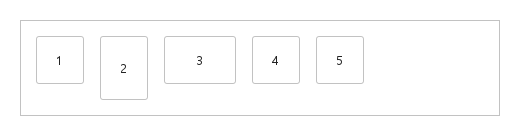
미리보기는 Qt 실행 화면의 이미지입니다. 아래 버튼으로 결과를 전환하세요.

01 기본 구성

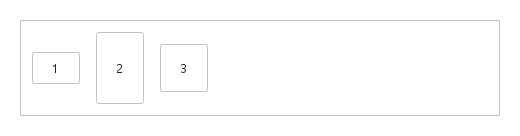
SyFlex는 안에 선언한 아이템을 익숙한 플렉스박스 조절값으로 행이나 열로 배치합니다: direction(과 그 reverse), 주축 방향의 justify, 교차축 방향의 align, 여러 줄로 나누는 wrap, 그리고 간격 이름으로 주는 rowGap / columnGap / padding.

Qt 실행 화면 · 이미지
기본 구성 · 기본
기본 실행 화면
QML 코드
import QtQuick
import Syidax.Core

Item {
    component FlexBox: Rectangle {
    property string label: ""
    property real side: 48
    width: side
    height: side
    radius: Foundation.borderRadiusMedium
    color: Theme.flex.itemBackgroundEnabled
    border.width: 1
    border.color: Theme.flex.containerBorderEnabled
    Text {
        anchors.centerIn: parent
        text: parent.label
        font.family: Theme.fontFamily
        font.pixelSize: 13
        color: Theme.semantic.textDefault
    }
}

    implicitWidth: Math.max(360, childrenRect.width)
    implicitHeight: childrenRect.height
    id: story

    property QtObject settings: QtObject {
        id: storyArgs
        property string direction: "horizontal"
        property string justify: "start"
        property string align: "start"
        property string wrap: "nowrap"
        property string rowGap: "medium"
        property string columnGap: "medium"
        property string padding: "medium"
    }


    Rectangle {
        width: 480
        height: flex.height
        color: "transparent"
        border.width: 1
        border.color: Theme.flex.containerBorderEnabled
        SyFlex {
            id: flex
            width: parent.width
            height: storyArgs.direction.indexOf("vertical") === 0 ? 320 : Math.max(implicitHeight, 48 + 2 * paddingPx)
            direction: storyArgs.direction
            justify: storyArgs.justify
            align: storyArgs.align
            wrap: storyArgs.wrap
            rowGap: storyArgs.rowGap
            columnGap: storyArgs.columnGap
            padding: storyArgs.padding
            FlexBox { label: "1" }
            FlexBox { label: "2"; height: 64 }
            FlexBox { label: "3"; width: 72 }
            FlexBox { label: "4" }
            FlexBox { label: "5" }
        }
    }

}

02 justify

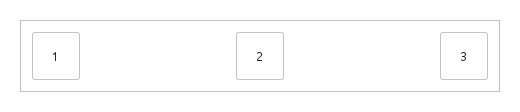
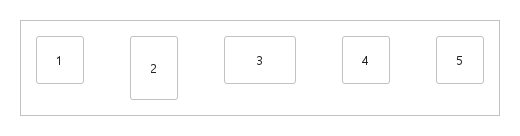
justify는 자식과 그 사이 간격을 한 줄에 놓은 뒤 주축 — 행에서는 폭, 열에서는 높이 — 의 남는 공간을 나눕니다: "start"(기본)는 시작 쪽에 모으고, "center"는 가운데, "end"는 끝에 모읍니다.

Qt 실행 화면 · 이미지
justify · 기본
QML 코드
import QtQuick
import Syidax.Core

Item {
    component FlexBox: Rectangle {
    property string label: ""
    property real side: 48
    width: side
    height: side
    radius: Foundation.borderRadiusMedium
    color: Theme.flex.itemBackgroundEnabled
    border.width: 1
    border.color: Theme.flex.containerBorderEnabled
    Text {
        anchors.centerIn: parent
        text: parent.label
        font.family: Theme.fontFamily
        font.pixelSize: 13
        color: Theme.semantic.textDefault
    }
}

    implicitWidth: Math.max(360, childrenRect.width)
    implicitHeight: childrenRect.height
    property QtObject settings: QtObject {
        id: storyArgs
        property string justify: "space-between"
    }


    Rectangle {
        width: 480
        height: flex.implicitHeight
        color: "transparent"
        border.width: 1
        border.color: Theme.flex.containerBorderEnabled
        SyFlex {
            id: flex
            width: parent.width
            justify: storyArgs.justify
            padding: "small"
            FlexBox { label: "1" }
            FlexBox { label: "2" }
            FlexBox { label: "3" }
        }
    }
}

03 align

align은 각 자식을 그 줄 안에서 교차축 — 행에서는 세로, 열에서는 가로 — 으로 놓습니다.

Qt 실행 화면 · 이미지
align · 기본
QML 코드
import QtQuick
import Syidax.Core

Item {
    component FlexBox: Rectangle {
    property string label: ""
    property real side: 48
    width: side
    height: side
    radius: Foundation.borderRadiusMedium
    color: Theme.flex.itemBackgroundEnabled
    border.width: 1
    border.color: Theme.flex.containerBorderEnabled
    Text {
        anchors.centerIn: parent
        text: parent.label
        font.family: Theme.fontFamily
        font.pixelSize: 13
        color: Theme.semantic.textDefault
    }
}

    implicitWidth: Math.max(360, childrenRect.width)
    implicitHeight: childrenRect.height
    property QtObject settings: QtObject {
        id: storyArgs
        property string align: "center"
    }


    Rectangle {
        width: 480
        height: flex.implicitHeight
        color: "transparent"
        border.width: 1
        border.color: Theme.flex.containerBorderEnabled
        SyFlex {
            id: flex
            width: parent.width
            align: storyArgs.align
            padding: "small"
            FlexBox { label: "1"; height: 32 }
            FlexBox { label: "2"; height: 72 }
            FlexBox { label: "3"; height: 48 }
        }
    }
}

04 wrap

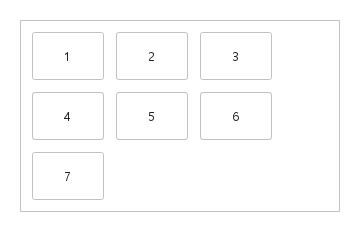
wrap: "nowrap"(기본)은 컨테이너를 넘치더라도 모든 자식을 한 줄에 둡니다.

Qt 실행 화면 · 이미지
wrap · 기본
QML 코드
import QtQuick
import Syidax.Core

Item {
    component FlexBox: Rectangle {
    property string label: ""
    property real side: 48
    width: side
    height: side
    radius: Foundation.borderRadiusMedium
    color: Theme.flex.itemBackgroundEnabled
    border.width: 1
    border.color: Theme.flex.containerBorderEnabled
    Text {
        anchors.centerIn: parent
        text: parent.label
        font.family: Theme.fontFamily
        font.pixelSize: 13
        color: Theme.semantic.textDefault
    }
}

    implicitWidth: Math.max(360, childrenRect.width)
    implicitHeight: childrenRect.height
    property QtObject settings: QtObject {
        id: storyArgs
        property string wrap: "wrap"
    }


    Rectangle {
        width: 320
        height: Math.max(flex.implicitHeight, 48 + 2 * Foundation.spacingSmall)
        clip: true
        color: "transparent"
        border.width: 1
        border.color: Theme.flex.containerBorderEnabled
        SyFlex {
            id: flex
            width: parent.width
            wrap: storyArgs.wrap
            padding: "small"
            rowGap: "small"
            columnGap: "small"
            Repeater {
                model: 7
                FlexBox { required property int index; label: String(index + 1); width: 72 }
            }
        }
    }
}

05 direction

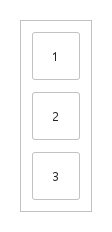
direction은 주축과 순서를 고릅니다.

Qt 실행 화면 · 이미지
direction · 기본
QML 코드
import QtQuick
import Syidax.Core

Item {
    component FlexBox: Rectangle {
    property string label: ""
    property real side: 48
    width: side
    height: side
    radius: Foundation.borderRadiusMedium
    color: Theme.flex.itemBackgroundEnabled
    border.width: 1
    border.color: Theme.flex.containerBorderEnabled
    Text {
        anchors.centerIn: parent
        text: parent.label
        font.family: Theme.fontFamily
        font.pixelSize: 13
        color: Theme.semantic.textDefault
    }
}

    implicitWidth: Math.max(360, childrenRect.width)
    implicitHeight: childrenRect.height
    property QtObject settings: QtObject {
        id: storyArgs
        property string direction: "vertical"
    }


    Rectangle {
        width: flex.implicitWidth
        height: flex.implicitHeight
        color: "transparent"
        border.width: 1
        border.color: Theme.flex.containerBorderEnabled
        SyFlex {
            id: flex
            width: implicitWidth
            height: implicitHeight
            direction: storyArgs.direction
            padding: "small"
            rowGap: "small"
            columnGap: "small"
            FlexBox { label: "1" }
            FlexBox { label: "2" }
            FlexBox { label: "3" }
        }
    }
}

06 작업 버튼 균등 배치

justify 설정을 적용한 작업 버튼 균등 배치 예제입니다.

Qt 실행 화면 · 이미지
작업 버튼 균등 배치 · 실행 결과
기본 실행 화면
QML 코드
import QtQuick
import Syidax.Core

Item {
    component FlexBox: Rectangle {
    property string label: ""
    property real side: 48
    width: side
    height: side
    radius: Foundation.borderRadiusMedium
    color: Theme.flex.itemBackgroundEnabled
    border.width: 1
    border.color: Theme.flex.containerBorderEnabled
    Text {
        anchors.centerIn: parent
        text: parent.label
        font.family: Theme.fontFamily
        font.pixelSize: 13
        color: Theme.semantic.textDefault
    }
}

    implicitWidth: Math.max(360, childrenRect.width)
    implicitHeight: childrenRect.height
    id: story

    property QtObject settings: QtObject {
        id: storyArgs
        property string direction: "horizontal"
        property string justify: "space-between"
        property string align: "start"
        property string wrap: "nowrap"
        property string rowGap: "medium"
        property string columnGap: "medium"
        property string padding: "medium"
    }


    Rectangle {
        width: 480
        height: flex.height
        color: "transparent"
        border.width: 1
        border.color: Theme.flex.containerBorderEnabled
        SyFlex {
            id: flex
            width: parent.width
            height: storyArgs.direction.indexOf("vertical") === 0 ? 320 : Math.max(implicitHeight, 48 + 2 * paddingPx)
            direction: storyArgs.direction
            justify: storyArgs.justify
            align: storyArgs.align
            wrap: storyArgs.wrap
            rowGap: storyArgs.rowGap
            columnGap: storyArgs.columnGap
            padding: storyArgs.padding
            FlexBox { label: "1" }
            FlexBox { label: "2"; height: 64 }
            FlexBox { label: "3"; width: 72 }
            FlexBox { label: "4" }
            FlexBox { label: "5" }
        }
    }

}

API 35

항목을 가리키거나 선택하면 QML 예제와 복사 버튼이 나타납니다.

속성

속성타입기본값설명
list (기본 속성)—배치할 자식(숨겨진 것은 건너뜀)
string"horizontal"horizontal · vertical · horizontal-reverse · vertical-reverse
string"start"주축 방향: start · center · end · space-between · space-around · space-evenly
string"start"교차축 방향: start · end · center · stretch · baseline(start와 같음)
string"nowrap"nowrap · wrap · wrap-reverse
string"medium"간격 이름: 행에서는 줄 사이, 열에서는 자식 사이
string"medium"간격 이름: 행에서는 자식 사이, 열에서는 줄 사이
string"medium"간격 이름: 사방 안쪽 여백
int0마지막 배치 뒤의 줄 수(자식이 없으면 0)
bool (읽기 전용)—주축이 폭임
bool (읽기 전용)—순서가 뒤집힘
real (읽기 전용)—간격 이름의 픽셀 값
real0배치된 자식에 패딩을 더한 것 — 한 줄, 또는 wrap이면 쌓인 줄들에 교차 간격을 더한 것 — 암시 크기(플렉스가 유지)

메서드

메서드설명
자식을 지금 배치; 플렉스가 변경마다 스스로 예약하므로 거의 필요 없음

시그널

항목동작 / 조건
SyFlex 자체에는 시그널이 없습니다. 배치마다 lineCount와 자식의 위치가 바뀝니다.

동작

항목동작 / 조건
horizontal · vertical · horizontal-reverse · vertical-reverse
direction: "horizontal"(기본)은 행, "vertical"은 열입니다.
간격 이름: 행에서는 자식 사이, 열에서는 줄 사이
간격 이름: 행에서는 줄 사이, 열에서는 자식 사이
nowrap · wrap · wrap-reverse
마지막 배치 뒤의 줄 수(자식이 없으면 0)
주축 방향: start · center · end · space-between · space-around · space-evenly
교차축 방향: start · end · center · stretch · baseline(start와 같음)
컨테이너는 주어진 width와 height를 차지하고 stretch가 아니면 자식 크기를 바꾸지 않습니다.
간격 이름: 사방 안쪽 여백
rowGapPx, columnGapPx, paddingPx가 픽셀 값을 드러냅니다.
자식의 x / y에 바인딩하지 마십시오 — 플렉스가 설정합니다.

키보드

항목동작 / 조건
SyLayout은 페이지를 감싸고, SyButtonGroup은 간격 없이 버튼을 잇고, SyDivider는 플렉스가 배치한 묶음을 가릅니다.