QML
← 전체 컴포넌트

File Upload

업로드할 파일을 선택하고 파일 목록, 진행 상태와 결과를 표시하는 필드입니다.

import Syidax.Core.FileUpload

지원 QML 타입

타입정의 / 역할
파일 선택·드래그 앤 드롭·검증·업로드 진행률을 제공하는 필드입니다.
Qt.labs.folderlistmodel로 로컬 파일 크기를 읽는 보조 타입이며 보통 SyFileUpload가 생성합니다.

예제로 보기

미리보기는 Qt 실행 화면의 이미지입니다. 아래 버튼으로 결과를 전환하세요.

01 기본 구성

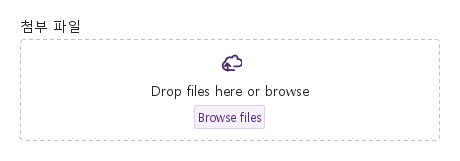
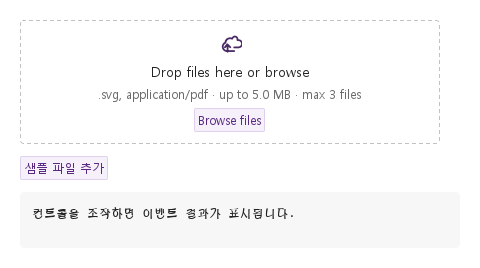
SyFileUpload는 점선 드롭존과 대기 파일 목록이 있는 폼 필드입니다.

Qt 실행 화면 · 이미지
기본 구성 · 기본
기본 실행 화면
QML 코드
import QtQuick
import Syidax.Core

Item {
    implicitWidth: Math.max(360, childrenRect.width)
    implicitHeight: childrenRect.height

    property QtObject settings: QtObject {
        id: storyArgs
        property string label: "첨부 파일"
        property string accept: ""
        property bool multiple: true
        property real maxSize: 0
        property int maxFiles: 0
        property string buttonLabel: "Browse files"
        property string dragLabel: "Drop files here or browse"
        property string helperText: ""
        property bool hideFiles: false
        property string fieldState: ""
        property bool disabled: false
        property bool required: false
        property string message: ""
    }


    SyFileUpload {
        width: 420
        label: storyArgs.label
        accept: storyArgs.accept
        multiple: storyArgs.multiple
        maxSize: storyArgs.maxSize
        maxFiles: storyArgs.maxFiles
        buttonLabel: storyArgs.buttonLabel
        dragLabel: storyArgs.dragLabel
        helperText: storyArgs.helperText
        hideFiles: storyArgs.hideFiles
        fieldState: storyArgs.fieldState
        disabled: storyArgs.disabled
        required: storyArgs.required
        message: storyArgs.message
    }

}

02 accept · maxSize · maxFiles

모든 파일은 메타데이터·읽기 가능 여부·accept/maxFiles/maxSize 검증 후 files/formValue에 들어갑니다.

Qt 실행 화면 · 이미지
accept · maxSize · maxFiles · 기본
기본 실행 화면
QML 코드
import QtQuick
import Syidax.Core

Item {
    component EventLog: Rectangle {
        id: logBox
        property var lines: []
        implicitWidth: 440
        implicitHeight: Math.max(56, logText.implicitHeight + 24)
        radius: 4; color: Theme.semantic.backgroundBold
        function log(value) { lines = lines.slice(-3).concat([String(value)]) }
        Text {
            id: logText; x: 12; y: 12; width: parent.width - 24
            text: logBox.lines.length ? logBox.lines.join("\n") : "컨트롤을 조작하면 이벤트 결과가 표시됩니다."
            wrapMode: Text.Wrap; color: Theme.semantic.textDefault
            font.family: Theme.monoFontFamily; font.pixelSize: 12
        }
    }

    implicitWidth: Math.max(360, childrenRect.width)
    implicitHeight: childrenRect.height
    // Focused Gallery routes: keep only the selected API and its prerequisites.
    id: featureStory

    readonly property alias uploadControl: upload

    Column {
        spacing: 12
        SyFileUpload {
            id: upload
            width: 420
            accept: ".svg,application/pdf"; maxSize: 5 * 1024 * 1024; maxFiles: 3; multiple: true
            onRejected: (detail) => output.log(detail.file.name + ": " + detail.reason)
        }
        Row {
            spacing: 8
            SyButton { objectName: "upload-samples"; text: "샘플 파일 추가"; variant: "secondary"; size: "small"; onClicked: upload.addFiles([Qt.resolvedUrl("../avatar/portrait.svg"), Qt.resolvedUrl("samples/notes.txt"), Qt.resolvedUrl("../pdf-viewer/docs/quarterly-report.pdf"), Qt.resolvedUrl("../avatar/portrait.svg"), Qt.resolvedUrl("../pdf-viewer/docs/quarterly-report.pdf")]) }
        }
        EventLog { id: output }
    }
}

03 fieldState · disabled

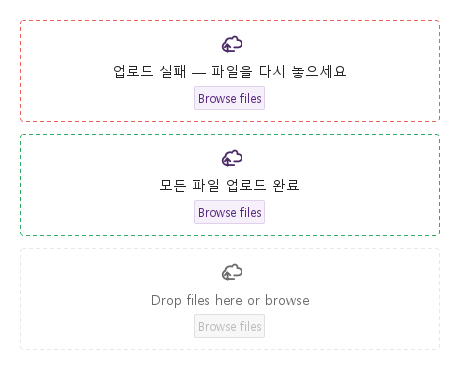
fieldState는 앱 자체 업로드의 결과를 알리기 위해 드롭존 테두리를 칠합니다: "error", "warning", "success"("" / "default"는 보통 테두리).

Qt 실행 화면 · 이미지
fieldState · disabled · 기본
기본 실행 화면
QML 코드
import QtQuick
import Syidax.Core

Item {
    implicitWidth: Math.max(360, childrenRect.width)
    implicitHeight: childrenRect.height
    // Focused Gallery routes: keep only the selected API and its prerequisites.
    id: featureStory

    Column {
        spacing: 12
        SyFileUpload { id: featureTarget0; visible: true; width: 420; fieldState: "error"; dragLabel: "업로드 실패 — 파일을 다시 놓으세요" }
        SyFileUpload { id: featureTarget1; visible: true; width: 420; fieldState: "success"; dragLabel: "모든 파일 업로드 완료" }
        SyFileUpload { id: featureTarget2; visible: true; width: 420; disabled: true }
    }
}

04 setProgress

컴포넌트는 업로드하지 않습니다.

Qt 실행 화면 · 이미지
setProgress · 기본
기본 실행 화면
QML 코드
import QtQuick
import Syidax.Core

Item {
    implicitWidth: Math.max(360, childrenRect.width)
    implicitHeight: childrenRect.height
    readonly property alias uploadControl: upload

    Column {
        spacing: 12
        SyFileUpload {
            id: upload
            width: 420
            multiple: true
            onSelected: (detail) => detail.files.forEach((file) => story.startUpload(file.id))
        }
        SyButton { objectName: "upload-samples"; text: "샘플 파일 추가"; variant: "secondary"; size: "small"; onClicked: upload.addFiles([Qt.resolvedUrl("../pdf-viewer/docs/quarterly-report.pdf"), Qt.resolvedUrl("../avatar/portrait.svg")]) }
    }
    id: story
    property var uploading: ({})
    function startUpload(id) { uploading[id] = 0; ticker.start() }
    Timer {
        id: ticker
        interval: 120
        repeat: true
        onTriggered: {
            let busy = false
            for (const id in story.uploading) {
                if (story.uploading[id] >= 100) continue
                story.uploading[id] += 10
                busy = true
                if (story.uploading[id] >= 100) upload.setProgress(id, 100, id === "f2" ? "error" : "success")
                else upload.setProgress(id, story.uploading[id])
            }
            if (!busy) ticker.stop()
        }
    }
}

05 selected · rejected · changed · removed

모든 파일은 메타데이터·읽기 가능 여부·accept/maxFiles/maxSize 검증 후 files/formValue에 들어갑니다.

Qt 실행 화면 · 이미지
selected · rejected · changed · removed · 기본
QML 코드
import QtQuick
import Syidax.Core

Item {
    component EventLog: Rectangle {
        id: logBox
        property var lines: []
        implicitWidth: 440
        implicitHeight: Math.max(56, logText.implicitHeight + 24)
        radius: 4; color: Theme.semantic.backgroundBold
        function log(value) { lines = lines.slice(-3).concat([String(value)]) }
        Text {
            id: logText; x: 12; y: 12; width: parent.width - 24
            text: logBox.lines.length ? logBox.lines.join("\n") : "컨트롤을 조작하면 이벤트 결과가 표시됩니다."
            wrapMode: Text.Wrap; color: Theme.semantic.textDefault
            font.family: Theme.monoFontFamily; font.pixelSize: 12
        }
    }

    implicitWidth: Math.max(360, childrenRect.width)
    implicitHeight: childrenRect.height
    // Focused Gallery routes: keep only the selected API and its prerequisites.
    id: featureStory

    readonly property alias uploadControl: upload


    Column {
        spacing: 12
        SyFileUpload {
            id: upload
            width: 420
            multiple: true; accept: ".svg,.pdf"
            onSelected: (detail) => { if (true) { output.log(("selected: %1").arg(detail.files.map((f) => f.name).join(", "))) } }
            onRejected: (detail) => { if (true) { output.log(("rejected: %1 (%2)").arg(detail.file.name).arg(detail.reason)) } }
            onChanged: (detail) => { if (true) { output.log(("changed: %1개").arg(detail.files.length)) } }
            onRemoved: (detail) => { if (true) { output.log(("removed: %1").arg(detail.file.name)) } }
        }
        SyButton { id: exampleControl1;  visible: true; objectName: "upload-samples"; text: "샘플 파일 추가"; variant: "secondary"; size: "small"; onClicked: upload.addFiles([Qt.resolvedUrl("../avatar/portrait.svg"), Qt.resolvedUrl("samples/notes.txt")]) }
        EventLog { id: output }
    }
}

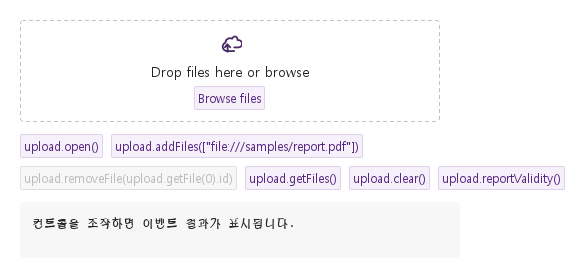
06 open · addFiles · removeFile · clear · getFiles

모든 파일은 메타데이터·읽기 가능 여부·accept/maxFiles/maxSize 검증 후 files/formValue에 들어갑니다.

Qt 실행 화면 · 이미지
open · addFiles · removeFile · clear · getFiles · 기본
QML 코드
import QtQuick
import Syidax.Core

Item {
    component EventLog: Rectangle {
        id: logBox
        property var lines: []
        implicitWidth: 440
        implicitHeight: Math.max(56, logText.implicitHeight + 24)
        radius: 4; color: Theme.semantic.backgroundBold
        function log(value) { lines = lines.slice(-3).concat([String(value)]) }
        Text {
            id: logText; x: 12; y: 12; width: parent.width - 24
            text: logBox.lines.length ? logBox.lines.join("\n") : "컨트롤을 조작하면 이벤트 결과가 표시됩니다."
            wrapMode: Text.Wrap; color: Theme.semantic.textDefault
            font.family: Theme.monoFontFamily; font.pixelSize: 12
        }
    }

    implicitWidth: Math.max(360, childrenRect.width)
    implicitHeight: childrenRect.height
    // Focused Gallery routes: keep only the selected API and its prerequisites.
    id: featureStory

    readonly property alias uploadControl: upload

    Column {
        spacing: 12
        SyFileUpload { id: upload; width: 420; multiple: true; required: true }
        Flow {
            width: 560
            spacing: 8
            SyButton { visible: true; text: "upload.open()"; variant: "secondary"; size: "small"; onClicked: upload.open() }
            SyButton { id: exampleControl1;  visible: true; text: "upload.addFiles([\"file:///samples/report.pdf\"])"; variant: "secondary"; size: "small"; onClicked: upload.addFiles([Qt.resolvedUrl("../pdf-viewer/docs/quarterly-report.pdf")]) }
            SyButton { id: exampleControl2;  visible: true; text: "upload.removeFile(upload.getFile(0).id)"; variant: "secondary"; size: "small"; enabled: upload.files.length > 0; onClicked: upload.removeFile(upload.getFile(0).id) }
            SyButton { visible: true; text: "upload.getFiles()"; variant: "secondary"; size: "small"; onClicked: output.log("getFiles() → " + JSON.stringify(upload.getFiles().map((f) => f.name))) }
            SyButton { visible: true; text: "upload.clear()"; variant: "secondary"; size: "small"; onClicked: upload.clear() }
            SyButton { visible: true; text: "upload.reportValidity()"; variant: "secondary"; size: "small"; onClicked: output.log("reportValidity() → " + upload.reportValidity()) }
        }
        EventLog { id: output }
    }
}

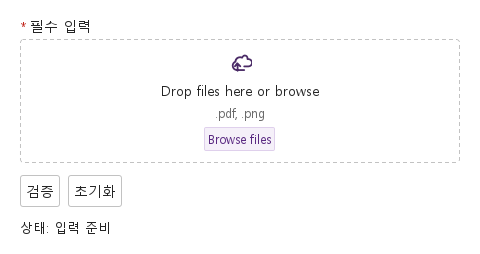
07 필수 입력과 초기화

검증 전·오류 표시·초기화 결과를 비교합니다.

Qt 실행 화면 · 이미지
필수 입력과 초기화 · 입력 전
QML 코드
import QtQuick
import Syidax.Core

Column {
    width: 440; spacing: 12
    SyFileUpload {
        id: field; width: parent.width; name: "selection"; required: true
        label: "필수 입력"; accept: ".pdf,.png"
        
        error: "계속하려면 이 항목을 입력하세요."
    }
    Row {
        spacing: 8
        SyButton { id: check; text: "검증"; onClicked: field.reportValidity() }
        SyButton { id: reset; text: "초기화"; onClicked: field.reset() }
    }
    Text { text: "상태: " + (field.invalid ? "오류" : "입력 준비"); color: Theme.semantic.textDefault }
}

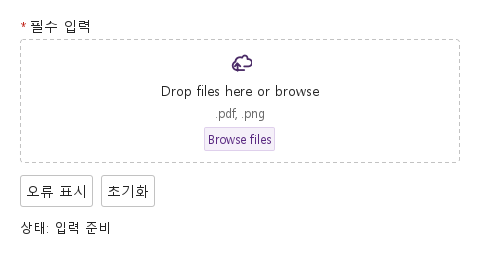
08 사용자 지정 오류

업무 규칙에 맞는 오류를 표시하고 초기화합니다.

Qt 실행 화면 · 이미지
사용자 지정 오류 · 입력 전
QML 코드
import QtQuick
import Syidax.Core

Column {
    width: 440; spacing: 12
    SyFileUpload {
        id: field; width: parent.width; name: "selection"; required: true
        label: "필수 입력"; accept: ".pdf,.png"
        
        error: "현재 사용할 수 없는 선택입니다. 다른 값을 선택하세요."
    }
    Row {
        spacing: 8
        SyButton { id: check; text: "오류 표시"; onClicked: field.setCustomError() }
        SyButton { id: reset; text: "초기화"; onClicked: field.reset() }
    }
    Text { text: "상태: " + (field.invalid ? "오류" : "입력 준비"); color: Theme.semantic.textDefault }
}

API 80

항목을 가리키거나 선택하면 QML 예제와 복사 버튼이 나타납니다.

속성

속성타입기본값설명
list[]대기열: [{ id, name, size, type, progress, status, message, url }]. 읽고, 메서드로 바꾸십시오.
string""쉼표로 구분한 규칙: .ext · type/* · type/subtype. 비면 전부.
boolfalse여러 파일. 아니면 새 선택이 대기열을 대체합니다.
real0바이트 단위 최대 크기. 크기를 읽은 뒤 검사. 0 = 제한 없음.
int0대기열의 최대 파일 수. 0 = 제한 없음.
string"Browse files"Browse 버튼(대화상자 제목도).
string"Drop files here or browse"존 안의 문구.
string""드래그 문구 아래의 자동 제한 줄을 대체.
boolfalse존 아래에 목록 없음.
string"""" / default · error · warning · success — 테두리를 칠함. 앱이 설정.
string""클릭한 행의 id(setSelectedFile()).
bool(읽기 전용)—파일이 존 위로 드래그되는 중.
string(읽기 전용)—드래그 중: 파일의 all · some · none이 accept를 통과. 그 밖에는 "".
string(읽기 전용)—실제로 보이는 도움말 줄.
list(읽기 전용)—폼이 제출하는 것: files.
bool(읽기 전용)—존에 키보드 포커스가 있는지
bool(읽기 전용)—포인터가 위에 있는지.
string""프레임의 제목, 목록 아래 도움말, 사용자 오류 문구.
string"files"SyForm.values()의 키.
boolfalse전부 반응 없음이며 항상 유효
boolfalse빈 대기열은 valueMissing.
읽기 전용—유효성: "" · valueMissing · custom. invalid는 touched 되거나 report 된 뒤.
읽기 전용—invalid는 touched 되거나 report 된 뒤.
읽기 전용—유효성: "" · valueMissing · custom. invalid는 touched 되거나 report 된 뒤.
real360앱이 너비를 정하지 않을 때의 너비.

메서드

메서드설명
파일 대화상자를 엽니다(accept로 거르고 multiple이면 여러 개 선택). disabled면 무시됩니다.
모든 파일은 메타데이터·읽기 가능 여부·accept/maxFiles/maxSize 검증 후 files/formValue에 들어갑니다. 검증 전 selected는 발생하지 않습니다. 거부한 파일은 rejected({file,reason})만 발생시킵니다. validating은 대기 상태입니다. 겹친 요청은 순서대로 처리하고 clear는 늦은 결과를 취소합니다. 단일 교체는 새 파일 검증 성공 후 changed.removed에 이전 파일을 포함하며 별도 removed 신호는 발생시키지 않습니다. 실패한 교체는 이전 파일을 유지합니다.
항목 하나를 빼고 removed, 그다음 changed를 발생시킵니다. 모르는 id는 무시됩니다.
대기열을 비우고 removed에 모든 항목을 담은 changed를 발생시킵니다(removed 시그널은 없음).
항목 하나의 바(0 … 100)와 상태(주어진 것, 또는 진행에서 유도)를 갱신하고 changed를 발생시킵니다.
대기열의 복사본.
index의 항목(또는 null). 인덱스가 없으면 선택된 항목, 없으면 첫 항목, 없으면 null.
그 행을 강조합니다(클릭이 하는 일).
존의 키보드 포커스 켜기 / 끄기.
존의 키보드 포커스 켜기 / 끄기.
상태가 ""인지 조용히
같지만 오류 줄을 드러냄.
"", "valueMissing" 또는 "custom".
custom 상태를 강제 · 해제.
custom 상태를 강제 · 해제.
clear() 하고 touched / submitted / custom 플래그를 끕니다.

시그널

시그널인자시점
detail: { files }파일이 더해짐(대화상자, 드롭, addFiles()). files는 새 항목만.
detail: { file, reason }검증 실패. files에는 들어가지 않음.
detail: { files, added, removed }추가·교체·제거·clear·진행 보고. 검증 실패만으로는 발생하지 않음.
detail: { file, files }파일 하나가 ×나 removeFile(id)로 빠짐. clear()에는 없음.
detail: { files, isValid, status }존이 키보드 포커스를 얻음 / 잃음. 블러는 필드를 touched로 표시합니다.

동작

항목동작 / 조건
모든 파일은 메타데이터·읽기 가능 여부·accept/maxFiles/maxSize 검증 후 files/formValue에 들어갑니다. 검증 전 selected는 발생하지 않습니다. 거부한 파일은 rejected({file,reason})만 발생시킵니다. validating은 대기 상태입니다. 겹친 요청은 순서대로 처리하고 clear는 늦은 결과를 취소합니다. 단일 교체는 새 파일 검증 성공 후 changed.removed에 이전 파일을 포함하며 별도 removed 신호는 발생시키지 않습니다. 실패한 교체는 이전 파일을 유지합니다.
파일이 존 위로 드래그되는 중.
드래그 중: 파일의 all · some · none이 accept를 통과. 그 밖에는 "".
쉼표로 구분한 규칙: .ext · type/* · type/subtype. 비면 전부.
파일이 더해짐(대화상자, 드롭, addFiles()). files는 새 항목만.
항목 하나의 바(0 … 100)와 상태(주어진 것, 또는 진행에서 유도)를 갱신하고 changed를 발생시킵니다.
selected({ files })는 새 항목만 전달하며, 각각에 대해 업로드가 진행되는 대로 setProgress(id, progress, status)를 부르십시오: progress는 0 … 100으로 잘리고, status는 "ready", "uploading", "success", "error" 중 하나이며 생략하면 진행에 따릅니다(100 → "success", > 0 → "uploading", 0 → 그대로). 행은 상태가 "ready"를 벗어나면 상태 색의 바를 보이고, 항목의 message가 있으면 이름 아래에 보입니다.
selected({ files })는 새 항목만 전달하며, 각각에 대해 업로드가 진행되는 대로 setProgress(id, progress, status)를 부르십시오: progress는 0 … 100으로 잘리고, status는 "ready", "uploading", "success", "error" 중 하나이며 생략하면 진행에 따릅니다(100 → "success", > 0 → "uploading", 0 → 그대로). fieldState는 앱의 결과를 알리기 위해 테두리를 칠하며 — error · warning · success — 컴포넌트는 절대 스스로 설정하지 않습니다.
행은 상태가 "ready"를 벗어나면 상태 색의 바를 보이고, 항목의 message가 있으면 이름 아래에 보입니다. label은 위에, message나 오류 줄은 목록 아래에 놓입니다.
추가·교체·제거·clear·진행 보고. 검증 실패만으로는 발생하지 않음.
항목 하나를 빼고 removed, 그다음 changed를 발생시킵니다. 모르는 id는 무시됩니다.
클릭한 행의 id(setSelectedFile()).
index의 항목(또는 null). 인덱스가 없으면 선택된 항목, 없으면 첫 항목, 없으면 null.
존 아래에 목록 없음.
대기열: [{ id, name, size, type, progress, status, message, url }]. 읽고, 메서드로 바꾸십시오.
disabled는 존과 행을 흐리게 하고, 클릭·드롭·포커스·키를 막으며, open() / addFiles()를 무시합니다.
파일 대화상자를 엽니다(accept로 거르고 multiple이면 여러 개 선택). disabled면 무시됩니다.
모든 파일은 메타데이터·읽기 가능 여부·accept/maxFiles/maxSize 검증 후 files/formValue에 들어갑니다. 검증 전 selected는 발생하지 않습니다. 거부한 파일은 rejected({file,reason})만 발생시킵니다. validating은 대기 상태입니다. 겹친 요청은 순서대로 처리하고 clear는 늦은 결과를 취소합니다. 단일 교체는 새 파일 검증 성공 후 changed.removed에 이전 파일을 포함하며 별도 removed 신호는 발생시키지 않습니다. 실패한 교체는 이전 파일을 유지합니다.
"" / default · error · warning · success — 테두리를 칠함. 앱이 설정.
required인데 대기열이 비면 valueMissing, setCustomError()면 custom, disabled면 "".
오류 줄은 필드가 touched 되거나(파일이 더해졌거나 존이 포커스를 잃음) reportValidity() 뒤에 보입니다.
SyForm.values()의 키.
name은 기본 "files"이고, SyForm.values()는 대기열(formValue), 즉 url이 있는 파일 항목 목록을 받습니다.
폼이 제출하는 것: files.
존은 최소 96 px 높이이고 필드 너비를 따릅니다: 앱이 width를 정하지 않으면 preferredWidth 360.
앱이 너비를 정하지 않을 때의 너비.
label은 위에, message나 오류 줄은 목록 아래에 놓입니다.

검증·이벤트 순서

항목동작 / 조건
메타데이터·읽기 가능 여부·타입·개수·크기 검증이 끝난 파일만 files/formValue와 selected에 들어갑니다. validating 동안 pending 파일은 공개하지 않습니다. 겹친 요청은 호출 순서대로 완료하고 clear 후 늦은 결과는 버립니다. hideFiles도 검증을 생략하지 않습니다. 유효한 단일 파일 교체 시 changed.removed로 이전 파일을 알리며, 교체 실패는 이전 파일을 유지합니다. MIME/accept는 확장자 기준이므로 서버의 내용 검증을 대체하지 않습니다.
Qt.labs.folderlistmodel이 없는 호스트는 fileSize(url)이 읽을 수 있는 파일 크기 또는 -1을 반환하는 Theme.fileMetadataProvider를 등록합니다. 제공한 C++/Python 호스트에 이 어댑터가 포함되어 있습니다.